ResMed AirSense 11 SD Card: Complete Data Guide
Your ResMed AirSense 11 is one of the most popular CPAP machines in the world, and for good reason. It is quiet, comfortable, and its AutoSet algorithm does a genuinely impressive job of adjusting pressure throughout the night. But there is something most AirSense 11 users never realise: the machine records far more data than ResMed’s myAir app ever shows you.
That little SD card slot on the side of your machine? It is not just there for firmware updates. Every single night, your AirSense 11 writes detailed clinical-grade data to that card — breath-by-breath flow waveforms, second-by-second pressure readings, individual respiratory event timestamps, mask leak measurements, and more. myAir distils all of this into a simplified daily score. The raw data tells a much richer story.
This guide explains exactly what is on that SD card, how to access it, and what you can learn from it.
What Files Are on the SD Card?
When you remove the SD card from your AirSense 11 and plug it into a computer or phone, you will find a folder structure organised by date. Each night of therapy creates a set of files in a date-stamped folder (formatted as YYYYMMDD). Inside each folder, you will find files in EDF format — European Data Format, a standard used in medical and sleep research.
The key file types are:
Session data (_BRP.edf) — This is the richest file. It contains the raw respiratory flow waveform sampled at 25 Hz (25 readings per second). This is the actual airflow through your mask, captured at clinical-grade resolution. You can see individual breaths, flow limitations, and the exact shape of each breathing event.
Event data (_EVE.edf) — This file records every respiratory event your machine detected: obstructive apnoeas, central apnoeas, hypopnoeas, and unclassified events. Each event is timestamped with its onset time and duration. This is the data your AHI score is calculated from.
Pressure and leak data (_PLD.edf) — This file captures therapy metrics sampled every 2 seconds: mask pressure, therapy pressure, mask leak rate, tidal volume, minute ventilation, and respiratory rate. These are the numbers that tell you how well your mask is sealing and how your machine is adjusting pressure throughout the night.
SpO2 and pulse data (_SA2.edf) — If you use a compatible pulse oximeter with your AirSense 11, this file records blood oxygen saturation and heart rate at 1 Hz (once per second). Not everyone has an oximeter, but if you do, this data is invaluable for correlating oxygen dips with respiratory events.
Cheyne-Stokes data (_CSL.edf) — If the machine detects Cheyne-Stokes respiration patterns, they are recorded in this separate file with start and end timestamps.
What myAir Shows You vs What the SD Card Contains
Understanding the gap between myAir and the raw SD card data is important, because it explains why many people feel like they are missing something.
myAir gives you:
- A daily score out of 100 (based on usage hours, mask seal, events, and mask on/off events)
- Your overall nightly AHI as a single number
- Usage hours
- A mask seal indicator (good/acceptable/poor)
- Basic trend charts over days and weeks
The SD card gives you:
- Every individual respiratory event with its exact timestamp and duration
- Whether each event was obstructive, central, or a hypopnoea
- Breath-by-breath flow waveforms showing the actual shape of your breathing
- Second-by-second pressure data showing exactly how the AutoSet algorithm adjusted throughout the night
- Detailed leak data at 2-second resolution, so you can see exactly when leaks happened and how severe they were
- Rolling AHI that shows how your event rate changed hour by hour
- Full oximetry data if you use a pulse oximeter
The difference is like comparing a weather forecast that says “average temperature: 15°C” versus an hourly breakdown showing it was 5°C at dawn and 25°C at noon. The average is technically correct but hides the important details.
This is exactly why many people feel tired despite good CPAP scores — the summary numbers can mask problems that only become visible in the detailed data.
How to Access the SD Card
Getting the SD card out of your AirSense 11 is straightforward:
Step 1: Locate the SD card slot. On the AirSense 11, the SD card slot is on the left side of the machine (when facing it from the front). There is a small cover that you push to release.
Step 2: Remove the card. Push the SD card in gently and it will spring out. The AirSense 11 uses a standard full-size SD card (not micro SD). Your machine came with one pre-installed.
Step 3: Read the data. This is where you have options:
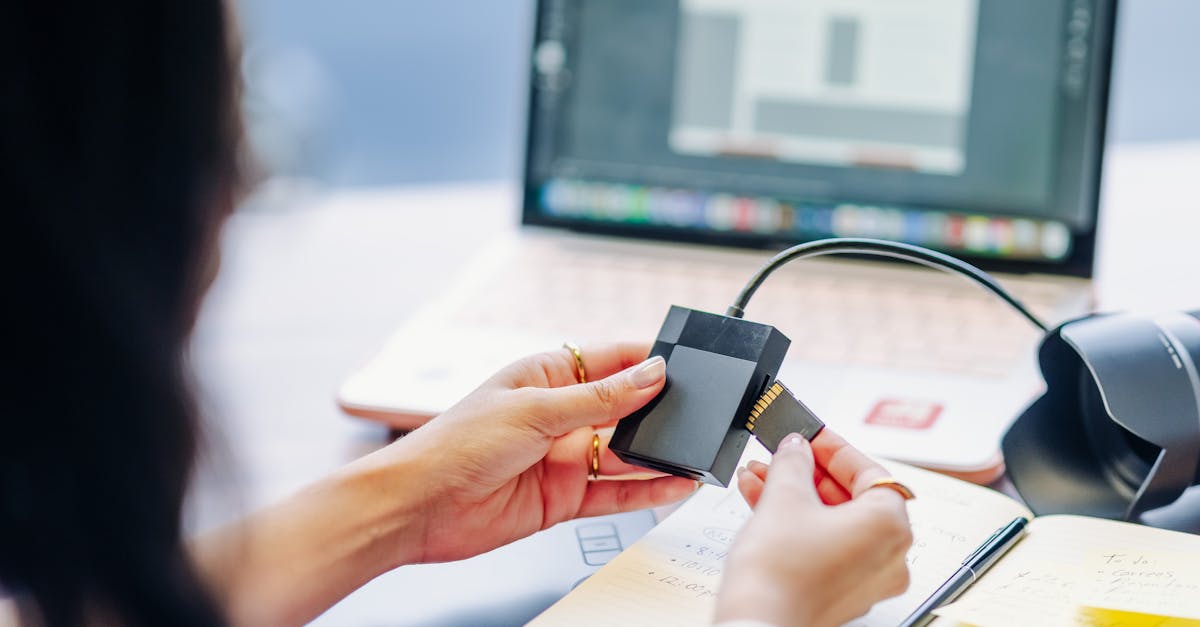
- On your iPhone: Use a USB-C to SD card reader (under £10 on Amazon) and the CPAP Analysis app to import and visualise everything directly on your phone. This is the fastest way to get from SD card to insights.
- On a PC or Mac: Use OSCAR (Open Source CPAP Analysis Reporter), a free desktop application that reads ResMed SD card data and presents it in detailed charts. OSCAR is powerful but has a steep learning curve and requires a computer.
Step 4: Re-insert the card. Slide the SD card back in until it clicks. Your machine will continue recording data from where it left off. No data is lost by temporarily removing the card.
Does Removing the SD Card Affect the Machine?
No. Removing the SD card does not affect your therapy settings, pressure prescriptions, or machine operation in any way. The AirSense 11 will continue to deliver therapy normally without the card inserted. You simply will not have detailed data recording until you put it back.
Some people worry about removing the card while the machine is powered on. While it is best practice to turn the machine off first (or remove the card when you are not using it), modern SD card implementations handle hot-removal gracefully. That said, develop a routine — many people remove the card in the morning after therapy, import the data, and put it back before bed.
Key Metrics to Look For
Once you have your SD card data loaded into an analysis tool, here are the most important things to examine:
Event Distribution Over Time
Your overall AHI might be 2.0, but the detailed event data shows you exactly when those events occurred. If you see a cluster of events between 3am and 5am (common during REM sleep), that tells a very different story than events spread evenly across the night. Look for patterns that repeat across multiple nights.
Leak Rate Patterns
Mask leaks are one of the biggest disruptors of CPAP therapy. The detailed leak data from the SD card shows you exactly when leaks occurred and how severe they were. Common patterns include:
- Positional leaks: Leaks that coincide with position changes (you will see sudden spikes in the leak trace)
- REM-related jaw drop: Leak increases during REM sleep when jaw muscles relax, common if you sleep with your mouth open
- Gradual seal degradation: Slowly increasing leak through the night as the mask shifts
Pressure Response
The AirSense 11’s AutoSet mode adjusts pressure in response to detected events and flow limitation. The pressure trace from the SD card shows you exactly how the machine is responding. Look for:
- Frequent pressure ramps: If the machine is constantly ramping pressure up and down, it may be chasing events rather than preventing them
- Maximum pressure reached: If the machine hits its maximum set pressure and stays there, you may need to discuss your pressure range with your doctor
- Pressure at event times: Checking what pressure the machine was delivering when events occurred helps identify whether higher pressures might prevent those events
Breath-by-Breath Flow
The 25 Hz flow waveform is the most detailed data on the card. While it takes some practice to read, flow waveforms reveal:
- Flow limitation: Flattened inspiration peaks that indicate partial upper airway obstruction, even when no full event is scored
- Cheyne-Stokes patterns: Gradually waxing and waning breath amplitude, which may indicate central sleep apnoea or heart failure-related breathing patterns
- Mouth breathing artefacts: Irregular flow patterns that suggest air is escaping through your mouth
Red Flags to Watch For
While detailed data analysis should complement (not replace) regular consultations with your sleep doctor, there are certain patterns worth flagging:
- Rising AHI trend over weeks or months — Could indicate weight changes, medication effects, or the need for a pressure adjustment
- High proportion of central apnoeas — Central events (where your brain temporarily stops sending the signal to breathe) can indicate treatment-emergent central sleep apnoea, which may need a different therapy approach
- Persistent high leak despite good mask fit — May indicate the need for a different mask type or size
- Significant oxygen desaturations (if using an oximeter) — Drops below 88% SpO2 that correlate with respiratory events warrant discussion with your doctor
How Often Should You Import Your Data?
There is no single right answer, but here are some sensible approaches:
- Daily (for troubleshooting): If you are newly diagnosed, adjusting to therapy, or investigating a specific problem, daily imports help you spot issues quickly and correlate how you feel with what the data shows.
- Weekly (for maintenance): Once your therapy is stable, a weekly check keeps you informed without becoming obsessive. Look for trends rather than individual night variations.
- Before appointments: Always import your most recent data before seeing your sleep doctor. Having detailed charts to show them is far more useful than relying on memory or myAir summaries.
The SD card has enough storage capacity for years of data, so there is no urgency to import frequently from a storage perspective. It is more about staying informed and catching problems early.
Frequently Asked Questions
Does the AirSense 11 SD card work with third-party analysis apps?
Yes. The AirSense 11 writes data in standard EDF (European Data Format), which is an open format used across the sleep medicine industry. Any compatible analysis tool — including CPAP Analysis for iPhone, OSCAR for desktop, and SleepHQ — can read this data. You are not locked into using only myAir. For a detailed comparison of available tools, see our guide to the best CPAP apps.
What happens if the SD card fills up?
The AirSense 11’s SD card is large enough to store several years of nightly data, so this is rarely an issue in practice. When the card does eventually approach capacity, the machine overwrites the oldest data first. If you want to preserve historical data, periodically copy the contents to your computer or import into an analysis app that stores the data locally.
Can I use a different SD card in my AirSense 11?
Yes, you can replace the SD card with any standard full-size SD card. ResMed recommends using cards of at least 4 GB capacity, though any modern SD card will exceed this. If you replace the card, the machine will create a fresh folder structure and begin recording. Your therapy settings are stored in the machine itself, not on the card, so swapping cards has no effect on your treatment. Visit CPAP Analysis to start reading your AirSense 11 data on iPhone today.
The information in this article is for educational purposes only and is not a substitute for professional medical advice. Always consult your sleep specialist or healthcare provider about your CPAP therapy.